Showing posts with label Photoshop Tutorials. Show all posts
Wednesday, December 16, 2009
Reduce Camera Noise in 3 Easy Photoshop Steps
Camera noise occurs when you shoot with a high ISO number. It appears in your images as grainy color dots. This 'noise' can ruin an otherwise perfect image. The noise is most obvious in the mid-tones and shadow areas of an image, and in this easy photoshop tutorial, I'll show you how to reduce the color segment of the noise. This is another of my guest posts over at Digital Photography School which is loaded with tons of helpful information. If you haven't checked out the site, make sure you do!
Reduce Camera Noise in 3 Easy Steps - Digital Photography School
Wednesday, November 11, 2009
How To Neutralize Color Casts In 5 Easy Steps
Easy Color Correction With A Gray Card
Correcting your images for accurate color is an easy step that can vastly improve the quality of your images. This tip is especially helpful if you are shooting at night using daylight balanced bulbs because even though bulbs are 'balanced', sometimes they still need correcting.Different types of light bulbs emit varying degrees of color temperature which if not corrected can create unpleasant color casts. A gray card is a really inexpensive tool that can help you with this very task!
Step #1 - Purchase a Gray Card
Gray cards can be purchased at your local photography shop. All they are really are a piece of cardboard that has a flat, neutral gray color painted on one side. These cards cost around $5 dollars. Some shops sell super expensive gray cards that cost around $40 dollars, so be careful when asking the shop owner for one. You don't need the super expensive card, believe me!Step #2 - Position Gray Card
The next step is to set up your lights, plates, and setting. Before placing the food on the plates carefully position the gray card on the plate so that it faces the camera. It's important that the card not be in shadow or in a highlight glare. You could also have someone hold the gray card like in the picture above, just make sure that the card is under the same exact light that the final photo will be in.Step #3 - Take A Picture Of The Gray Card
Sounds sort of weird, I know, but just take it. Set the proper exposure and take a picture of the gray card. The position of the camera, composition, and lighting should all be similar to what the final picture will be. Once you take this picture, continue shooting your food like you normally would (without the gray card!). You only have to take a picture of the gray card once....unless the lighting changes. If the lighting changes take a new picture of the gray card and continue shooting like normal.Step #4 - Set Gray Point In Photoshop
Open the image in Photoshop and add a levels adjustment layer. (If you're not familiar with adjustment layers, check out this easy tutorial that explains the benefits of Non-Destructive Image Adjustments) In the Levels adjustment window, on the lower right hand side, you will see three eye-dropper icons.Click the middle one. While selected, any pixel you click will automatically be converted into neutral middle gray---shifting all the colors in the image along with it.
Once the middle gray eye-dropper tool is selected, bring the cursor over to your image and click anywhere on the gray card. Voila! The image is automatically neutralized of any color casts!
Step #5 - Save and Load Correction
Once the correction is made find the "save" button in the Levels adjustment window and click it. The button is on the right hand side of the histogram. This will save the adjustment and will allow you to load it into any image. Name the file with the date of the shoot and a descriptor like "color-correction". Photoshop will ask you to specify a location to save the file so pick something that will be easy to remember.With this adjustment saved, all you have to do now is open up your images that you shot after taking the picture of the gray card and add a new adjustment layer. Once the Levels adjustment window is open, click "load" and select the saved adjustment file and Voila! A perfect color corrected image!
Sunday, October 4, 2009
Non-Destructive Image Editing For Food Bloggers
Photoshop Adjustment Layers Save Time, Offer More Control
Non-Destructive image editing is the professional method of correcting images in Photoshop. In earlier versions of photoshop and in less-powerful image editing software, pixels are directly edited thereby irreversibly altering their structure. The problem with this type of editing is that when mistakes are made, you are forced to revert back and start from scratch, wasting all of your precious editing work and time!
Non-Destructive image editing however, doesn't immediately alter the pixels allowing you to return to your correction whenever you want, as many times as you want. Mistakes are easily corrected and because the editing is done on a separate layer, layer masks can be used for even more control and power! This tutorial is a bit more advanced than others I've posted, but not by much. Check it out
Add Adjustment Layer
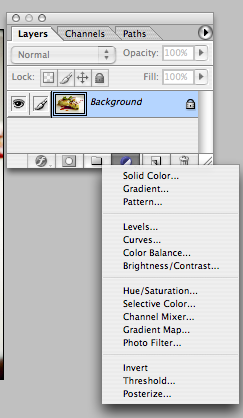
An adjustment layer is an editing command that is added as a separate layer. Open your Layer Palette and at the bottom find a button that is half white and half black. Click that button and a new menu will pop up. At this point you have many options. All of these options allow you to edit the image in a number of ways. The ones I use the most are Levels, Curves, and Hue Saturation. Play around with others, but if you're trying to do basic image corrections like exposure and color correction, then the three I mentioned are all you need.

I use Levels to correct exposure. You can check out this "how to correct exposure" post I wrote a while back to see how to use this command. I also use Curves to fine tune the exposure...curves is a bit complicated for this post, but if any of you are dying to learn it, let me know in the comments and I'll whip up a post about it. Hue/Saturation is used to correct for color imbalances and to increase saturation. See this easy tutorial on how to use the Hue/Saturation command if you're interested in learning it.
Adjust Edit Whenever You Want
Here is where this command really comes in handy. Let's say you went a little too far with the saturation command and now your photo of tomatoes looks nuclear and neon. Because you haven't altered the pixels, all you need to do is double click the adjustment layer and the dialogue menu re-appears and allows you to further correct your edit. Brilliant!
Add Power To Your Corrections
Because adjustment layers are added as separate layers you can add masks to them to control where the correction is added. Another previous post I wrote on Burning & Dodging Using Adjustment Layers is a good starter if you haven't ventured in to the world of masks. Masks seem to be one of the toughest tools for photoshop newbies to master, so be patient with this one. In essence, when adding a mask you use black to hide parts of the adjustment layer, and the color white reveals the full effects of the correction. The only reason you can add a mask to your adjustment is because you've added it as a separate layer. Had you made your adjustment directly to your pixel, you wouldn't be able to control where the adjustment was visible, thereby denying you control.
When Done, Flatten All Layers
When your corrections are all done, the last thing you need to do is flatten all the layers. Photoshop waits until this point to actually alter the pixels. In essence, an adjustment layer gives you a PREVIEW of what the correction will look like. When you flatten the layers, photoshop applies the corrections and alters the pixels. After flattening the layers you cannot return to the adjustment layers without backtracking on your history palette. This should be the very last step you do before saving your file.
I always make it a habit to save a file with adjustment layers intact, flatten the image, then save the final. This way if months later I decide to alter the image I can return to my file that contains my adjustments layers and not have to start all over.
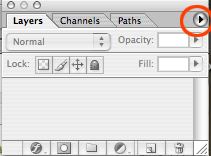
To flatten the layers go to your Layers Palette window and on the top right find a little triangle (pictured below) click that and a new menu pops up. Select flatten image and you're done!

Adjust Edit Whenever You Want
Here is where this command really comes in handy. Let's say you went a little too far with the saturation command and now your photo of tomatoes looks nuclear and neon. Because you haven't altered the pixels, all you need to do is double click the adjustment layer and the dialogue menu re-appears and allows you to further correct your edit. Brilliant!
Add Power To Your Corrections
Because adjustment layers are added as separate layers you can add masks to them to control where the correction is added. Another previous post I wrote on Burning & Dodging Using Adjustment Layers is a good starter if you haven't ventured in to the world of masks. Masks seem to be one of the toughest tools for photoshop newbies to master, so be patient with this one. In essence, when adding a mask you use black to hide parts of the adjustment layer, and the color white reveals the full effects of the correction. The only reason you can add a mask to your adjustment is because you've added it as a separate layer. Had you made your adjustment directly to your pixel, you wouldn't be able to control where the adjustment was visible, thereby denying you control.
When Done, Flatten All Layers
When your corrections are all done, the last thing you need to do is flatten all the layers. Photoshop waits until this point to actually alter the pixels. In essence, an adjustment layer gives you a PREVIEW of what the correction will look like. When you flatten the layers, photoshop applies the corrections and alters the pixels. After flattening the layers you cannot return to the adjustment layers without backtracking on your history palette. This should be the very last step you do before saving your file.
I always make it a habit to save a file with adjustment layers intact, flatten the image, then save the final. This way if months later I decide to alter the image I can return to my file that contains my adjustments layers and not have to start all over.
To flatten the layers go to your Layers Palette window and on the top right find a little triangle (pictured below) click that and a new menu pops up. Select flatten image and you're done!
I know using adjustment layers might seem like a lot of work, but ultimately they can save you countless hours and add powerful controls you otherwise wouldn't have. Do you use non-destructive image editing in your workflow? Have any questions about layers and masks? Leave me a comment and I'll get back to you.
Wednesday, September 30, 2009
Add Text To Photos For Professional Magazine Look
Adding text to your food photos is a really simple way to add a professional and elegant look to your blog's design. This format won't appeal or work on everyone's blog, but if you're tired of your current design and don't have the time or money to completely re-design it, than this technique might be the answer to your design-woes!
There are a few design options to consider before diving in to adding text. The size, font, and placement all combine to give your photo a certain "look" and that look should match your blog's identity. For instance, if your blog's identity is about elegant food, the design elements should reflect that elegance. Ultimately, the text combined with the photo will give your blog a polished professional appearance.


The images above both have a kerning value of 100. Play around with different amounts to see what looks best. In my opinion kerning is what gives typography it's professional look, so don't skip this step!
Choosing the font size is a harder decision than you might think. The dilemma here is that you don't want to pick a font size that will over-power the image, while you also don't want the font to become lost. I tend to think that smaller is better, so err to the side of small. But by all means play around with the size....just remember, the focus should be the food, not the text!
I always tend to place text in the bottom space of the photograph, but it really all depends on what color is in the background. As you can see in the photos above, I placed the text on the dark side of the plate. This allows the text to really stand out and ensures that it wont get lost. Play around with different placements....don't just plop the text in the center! From my experience text placed off-center, behind a dark color, and near the edge of the photo tend to work best.
There are a few design options to consider before diving in to adding text. The size, font, and placement all combine to give your photo a certain "look" and that look should match your blog's identity. For instance, if your blog's identity is about elegant food, the design elements should reflect that elegance. Ultimately, the text combined with the photo will give your blog a polished professional appearance.
Choose A Font That Reflects Your Identity
There are tons and tons of fonts available but I tend to stick to the classic ones like Helvetica, Times New Roman, and Arial. Choose your favorite font but make sure that whatever font you choose reflects your blog's identity. Classic fonts tend to give a more elegant and sophisticated look, while funky creative fonts give a more wild and youthful feel. Below are two examples of the same photo with different fonts. Notice how dramatically different the feeling of the photo changes with each particular font.Add Kerning To Space The Text
Kerning allows you to change the space between each letter. I often find that text with no kerning looks a bit off, so I always make it a point to kern the text. In photoshop, the Character Palette has a kerning window that allows you to choose the amount. To open the Character Palette go to Window > Character. Below is a photo of the palette with the kerning command highlighted.The images above both have a kerning value of 100. Play around with different amounts to see what looks best. In my opinion kerning is what gives typography it's professional look, so don't skip this step!
Choose Font Size Carefully
Choosing the font size is a harder decision than you might think. The dilemma here is that you don't want to pick a font size that will over-power the image, while you also don't want the font to become lost. I tend to think that smaller is better, so err to the side of small. But by all means play around with the size....just remember, the focus should be the food, not the text!
Find A Contrasting Space To Place The Text
I always tend to place text in the bottom space of the photograph, but it really all depends on what color is in the background. As you can see in the photos above, I placed the text on the dark side of the plate. This allows the text to really stand out and ensures that it wont get lost. Play around with different placements....don't just plop the text in the center! From my experience text placed off-center, behind a dark color, and near the edge of the photo tend to work best.
Thursday, June 4, 2009
Precise Color Correction - Photoshop Tutorial

One of the hardest tasks to do in correcting photographs is neutralizing a color cast. Notice how in the image above the white plate doesn't quite look "white". It has a bit of a blue-ish cast to it. In this photoshop tutorial I'll show you a really easy way to correct that.
This is another one of my guest posts over at Darren Rowse's Digital Photography School. For those that don't know who Darren is, he is the author of the immensely popular Pro Blogger blog, but he also runs an equally successful digital photography blog. Darren is a giant in the blogging world, so it's an honor to be a guest blogger on his site. Check out my other guests posts on his blog here and here.
Precise Color Correction With Gray Fill Layers - Digital Photography School
Tuesday, May 19, 2009
How To Adjust Exposure In A Snap


Levels Adjustments Made Easy
Utilizing Photoshop's Levels adjustments is one of the easiest and most powerful ways to adjust the exposure of your photographs. For some, the levels dialogue box can seem overwhelming, so in this tutorial I'll show you how simple it actually is and I'll show you how I use this very powerful tool.As you can see in the example above, using this tool can greatly improve your food photographs by making them brighter and full of life and color. Give it a shot!
Levels adjustment for exposure in second part of post...
Add Levels Adjustment Layer

Open your image and add a Levels Adjustment Layer. On the bottom of the layer palette you will find an icon that is a circle with half white and half black. That is your adjustment layer icon. Click that and a menu will come up. Choose Levels.
Understanding The Histogram

A dialogue box will open up showing your Histogram. A Histogram is a visual representation of the amount of light, middle, and dark pixels in your photograph. The histogram is shaped like a mountain, the peak representing the most pixels and the slopes or flat areas representing less pixels.
On the bottom of the histogram you will find three triangles. The left triangle is black and controls the shadows or dark pixels, the middle triangle is gray and represents the middle values and pixels, and the right triangle is white and controls the highlights and light pixels.
As you can see in the example above, the mountain peaks in the middle and has plenty of height and slopes toward the left, but has almost no peaks or slopes on the right. What this means is that the image has plenty of middle tones and dark pixels, but very few light pixels. Again, the left side of the histogram represents dark tones, the middle represents middle tones, and right represents light tones.
By looking at the histogram I can tell that the photograph needs light tones....it needs to be brightened up. The ideal histogram would have a mountain that has continuous peaks and slopes across the entire plane. Being able to read the histogram is crucial because now I know what type of adjustment to make.
Move Sliders To Make Exposure Adjustments

Now that I've figured out that the image needs to brightened up all I need to do is move the white triangle (on the right) over to the point in the mountain where it begins to slope up.
Moving the white triangle to left will brighten your image.
Be careful not to move it beyond the beginning of the mountain, otherwise you will start to loose information. In the example above I drew red lines to signify the beginning of vertical slopes that I use as guides.
In addition to moving the white triangle, I also move the gray and black triangles. I moved the black triangle to the first vertical slope (again, look at the red lines I've added).
Moving the black triangle to the right will darken the image and moving the gray triangle will darken or lighten the middle pixels. Play around with different levels to see what type of effects you get.
Learning to use the white and black triangles is the simplest way to adjust exposure and it really is a snap!
Tuesday, May 12, 2009
Photoshop Tutorial - Burning And Dodging

Over on Darren Rowse's Digital Photography School I have a new guest post on using Photoshop adjustment layers and masks to burn and dodge an image.
Don't know what burning and dodging is? Check out the post and find out!
Burning & Dodging With Adjustment Layers and Masks - Digital Photography School
Monday, May 11, 2009
Photoshop Tutorials!
There's been in increase in demand for Photoshop tutorials on this site so I've gone ahead and created a new tag that conveniently sorts all of the Photoshop related tutorials. You can find the tag on the top tool bar or on the right sidebar with the rest of the categories. Check back often because I'll be starting a new series of Photoshop tutorials specifically focused on food photographs.
Photoshop Tutorials - Food Bloggers Unite!
Saturday, April 25, 2009
Quick Tip To Brighten Dark Photos

Here's a quick photoshop tip to help you brighten up a dark photo. If you're new to photoshop and are intimidated by the Levels and Curves command then I think you'll like this simple technique.
Brighten A Dark Photo in second part of post...
Step #1 - Add Adjustment Layer

At the bottom of the layer palette, click the adjustment layer button (it looks like a circle that is half black, half white) and add an adjustment layer...it doesn't matter which one. I chose the 'Levels' adjustment layer.
A new dialogue box will pop up. Without making any adjustments simply click OK.
Step #2 - Change Layer Blending Mode

At the top of the layer palette change the layer blending mode from 'Normal' to 'Screen'. Voila!
Thursday, April 16, 2009
Sharpen Your Photos With A Few Simple Steps

Having sharp photographs is one of the most essential aspects of a successful food photograph. Digital cameras sometimes produce soft images that need to be sharpened in post-production. That's where Photoshop comes into play. Photoshop is essential.
In this tutorial, I'll show you a really quick way to sharpen your images using Photoshop. I use this trick ALL OF THE TIME. You should too!
Sharpening Tutorial in second part of post...
Step #1. Duplicate The Background Layer
Open your image in Photoshop and using the layer palette, duplicate the layer. You can either click and drag the background layer into the "new" layer icon at the bottom of the layer paletter or you can select the background layer and go to Layer> Duplicate Layer.Step #2. Add High Pass Filter
With the duplicated layer selected, go to Filter> in the top menu, Other> High Pass. The image will appear gray with white and black outlines. The scrubby slider on the bottom will control the amount of sharpening...slide it to the right for more sharpening or slide it the left for less. The goal is to get the gray image to appear as only a line drawing. Click ok.Step #3. Change Layer Blending Mode
On the layer palette change the layer blending mode from 'Normal' to 'Overlay'. The gray layer will now disappear and turn into a sharpened layer. Switch the layer off and on to see the difference!Don't miss a single post! Sign up for our free email updates!
Monday, April 6, 2009
Guest Post on Digital Photography School

Please take a look at my guest post over on Darren Rowse's Digital Photography School.
My post is on adding blur to the background of your image in order to create atmosphere and mood. The technique utilizes some medium-level Photoshop tricks, but nothing fancy. Take a look!
Creating Depth of Field With Filters and Masks - Digital Photography School
Sunday, March 15, 2009
Boost The Color In Your Food Photographs
By Danny
Quick Photography Tip
Here is a really simple trick to boost the color saturation of your food photographs. Certain photographs need a bit of help to bring them to life and this tip certainly does the trick!
Tip in second part of post...
Photoshop Is Your Friend
I use Photoshop to adjust and enhance most of my photographs. I don't alter the images, but I do boost the strengths of particular images. Photoshop is your friend. If you don't know how to use it, learn it!Below is a video with a quick tip to help you selectively boost the intensity and saturation of particular colors. I use this trick on almost EVERY photograph!
Video via photoshop killer tips
Want to receive our free updates via email? Just follow this link!
Subscribe to:
Posts (Atom)